

Lesson 2 of 104 steps · about 2 minutes
Get your students on Tap In
Share your academy link with one class to start. Athlete access is free.
Step 1 of 4
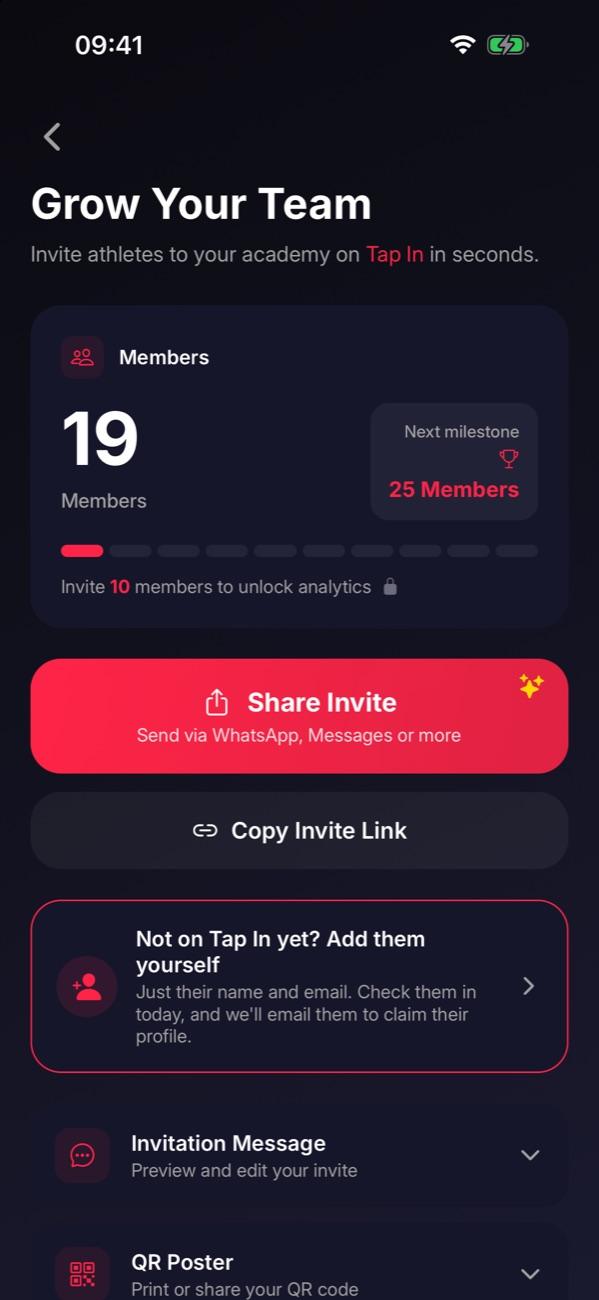
Open Grow Your Team
Go to Manage, tap Students, then the add icon at the top right.
Step 2 of 4
Share your link
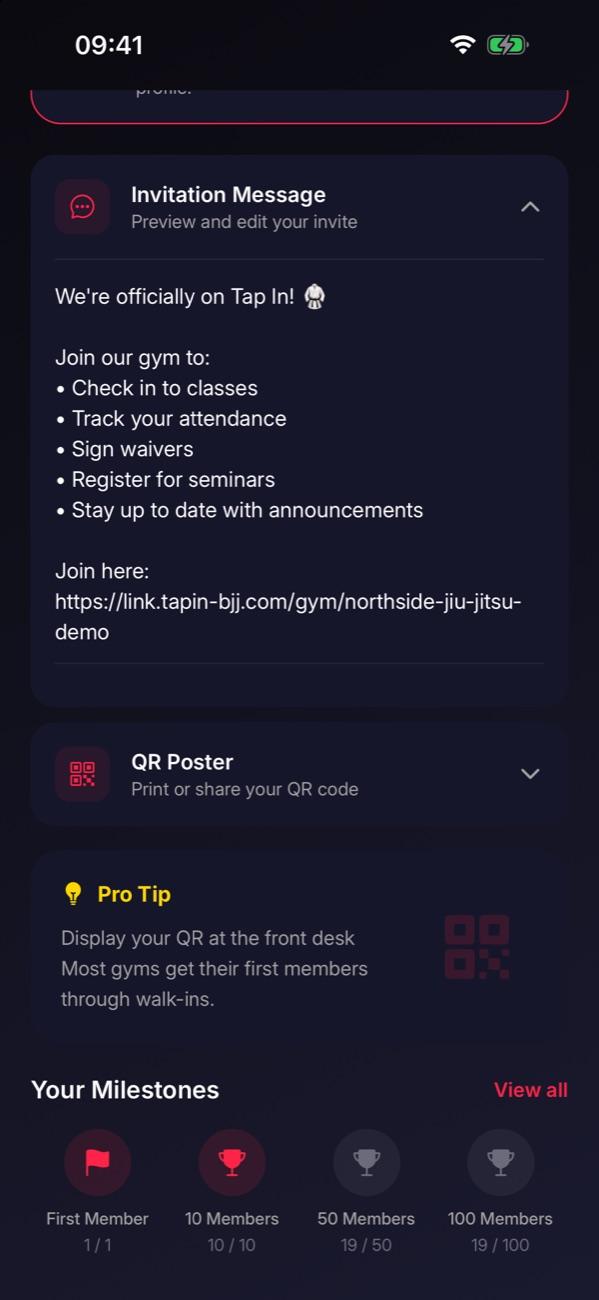
Tap Share Invite to send it by WhatsApp or Messages, or Copy Invite Link for your group chat. Invitation Message shows what they’ll get.
Step 3 of 4
Put up your QR poster
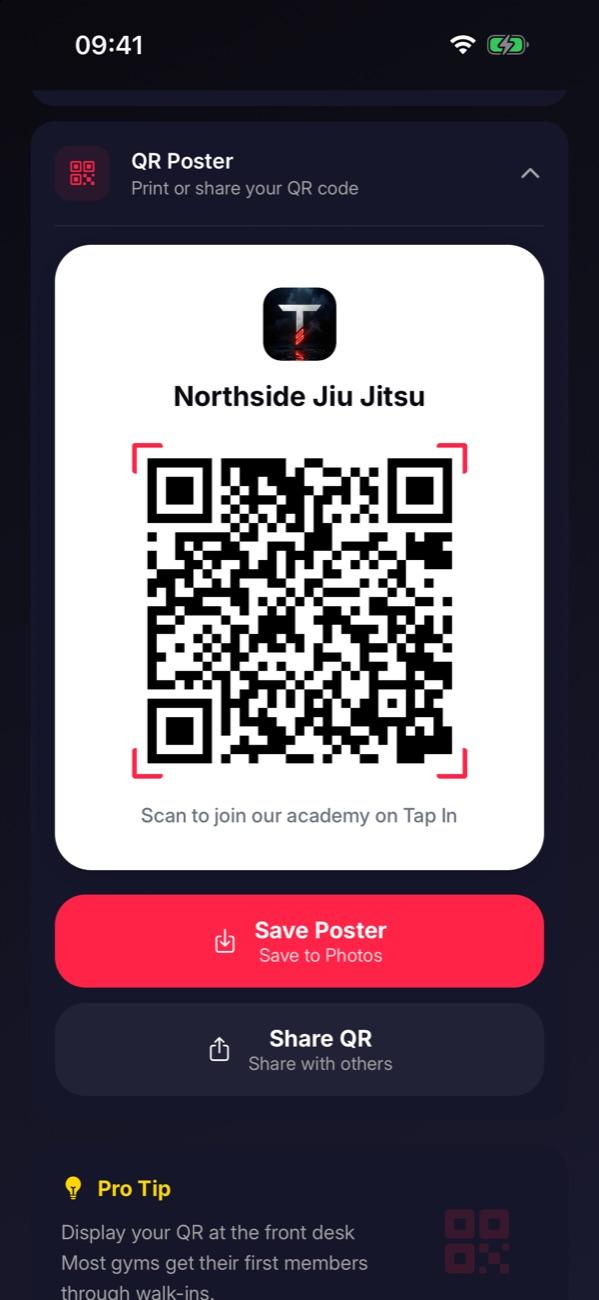
Open QR Poster and tap Save Poster. Print it for the front desk so people can scan and join.
Step 4 of 4
Add someone yourself
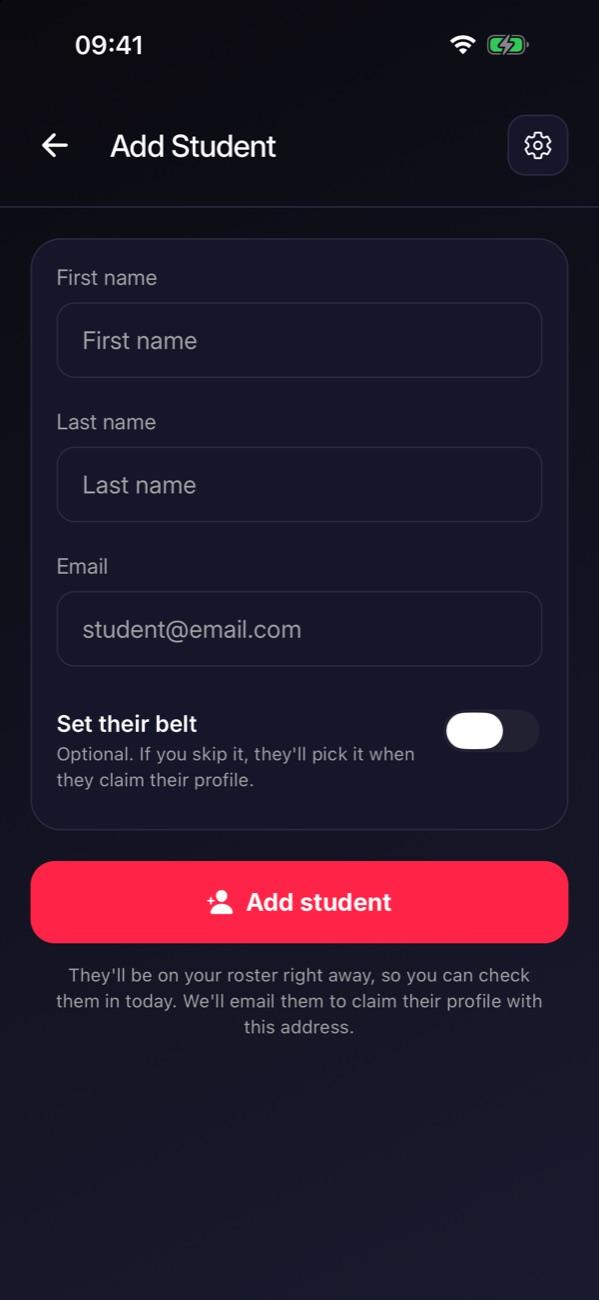
Not on Tap In yet? Tap Add them yourself, enter their name and email, and tap Add student.

Tip: Mention it before class starts so people know what to do. You can invite the rest once your first group is using it.
Stuck on this step?
Ask Darcy, or email us and we’ll help you set it up.